GPT Image 2.6 Is Out: Features and Our First Impressions
OpenAI released Images 2.6 on November 4, and we jumped straight into testing it. The biggest upgrade from GPT Image 2.5 is the ability to generate animated GIFs, but it’s far from the only one. Read on for our first impressions and try the new model yourself on SYNTX.AI.
What’s new in GPT Image 2.6?
The model comes in two versions, GPT-Image 2.6 Flare and GPT-Image 2.6 Sunburst. GPT Image 2.5 shipped in the same pairing, so the naming is familiar to many.
Both take text and image inputs, both generate and edit, and both support transparent backgrounds with quality settings from low to max plus auto. The main difference is that Flare is faster, while Sunburst generates more detail.
| Feature | Description |
|---|---|
| GIF output | Animated loops from text or an uploaded image, in ChatGPT and the API |
| 50% faster generation | OpenAI's launch figure, not an independent benchmark |
| Six-second generation | Flare can return an image in as little as six seconds when quality is set to low |
| Steadier edits | Sunburst keeps characters, products and small details consistent across editing rounds at medium or high quality |
| Better layouts | Flare places text and objects more cleanly on posters, product imagery and other professional visuals |
| Markup in the API | ChatGPT's select-and-instruct editing, opened to developers |
| Adjustable planning | Control over how much the model plans before it draws |
OpenAI claims Images 2.6 is 50% faster than Images 2.5. The fastest documented case is Flare at low quality, where an image can land in six seconds. While we didn’t measure speed in milliseconds and instead focused on output quality during our tests, we can confirm that generations feel much faster.
GIFs in GPT Image 2.6
There are two ways to create a GIF with GPT Image.
- From a prompt. Describe the scene like you would describe a regular image. Mention the character and their outfit, the setting, camera angle, lighting and other details. Then say which parts move and what stays fixed.
- From an image. Upload a picture you already finished and ask for it to be animated. You can then change the animation speed and correct individual frames instead of regenerating the whole loop. For anyone with existing assets, this is the shorter path. You can even take a pen sketch and turn it into a moving character, which is useful for storyboards and pitch decks.
More accurate edits
Markup is the most useful editing control. You can select a region with the rectangle tool, describe the change, and the model only adjusts that area.
On SYNTX.AI, you can edit images in GPT Image 2.6 with a text prompt. Either way, edits are far more consistent than in previous model versions.
In our tests, Sunburst at medium quality did a better job of keeping a character, a product and small details intact across several editing rounds. On 2.5, a portrait edited five times would slowly lose original facial features.
Professional layouts
Flare's layout quality improved significantly. We ran a few tests with text on image, and it came out exactly in the position we specified. That said, the model doesn’t build a grid on its own, so you need to specify where each element goes and how much room it gets.
Planning is adjustable in the API through a complexity setting with low, medium and high, and high is the default. It controls how much work happens before rendering, separately from quality, which controls fidelity.
OpenAI recommends low for most edits and warns that higher settings can introduce changes you did not ask for, plus extra latency. A dense scene with several objects benefits from more planning. A background swap doesn't.
If you work directly in ChatGPT, planning is tied to model choice. Selecting a Thinking or Pro model makes the assistant reason through the request before generating.
GPT Image 2.5 vs 2.6
| Feature | GPT Image 2.5 | GPT Image 2.6 |
|---|---|---|
| Flare and Sunburst | Yes | Yes |
| GIF generation | No | Yes |
| Markup editing in the API | No | Yes |
| Adjustable planning | No | Yes |
| Generation speed | Baseline | 50% faster (OpenAI) |
| Poster and product layouts | Baseline | Improved on Flare |
| Edit consistency at medium and high | Baseline | Improved on Sunburst |
| Text and image input | Yes | Yes |
| Transparent backgrounds | Yes | Yes |
GPT Image 2 remains available, yet OpenAI is retiring GPT Image 1.5 in the API on December 1, 2026.
How to run GPT Image 2.6 on SYNTX.AI
You can already test both versions without a ChatGPT subscription. Here’s how:
- Register on SYNTX.AI with your email. New accounts get welcome tokens at signup.
- Open the Image tab in the main navigation.
- Open the model drop-down, choose GPT Image, then select the version: 2.6 Flare for speed, 2.6 Sunburst for detail.
- Set aspect ratio, resolution and quality.
- Write your prompt and generate. Attach references if needed.
Generation costs tokens, and the amount depends on the version, quality, resolution and how many images you request at once. Tokens don’t expire, so unused ones carry into the next month.
Our first impressions
We spent two days testing the model on different types of images, including product shots, posters and fashion editorials. We also created several GIFs.
GIFs held up better than expected. Our first loops came back with a clean loop point and a subject that stayed the same size across frames. Initial failures were mostly on us, like too much movement in the prompt.
Sketch-to-animation is an underrated feature. You can start from a rough drawing instead of a finished character and get something that moves in seconds. That's useful when you want to see whether a character reads in motion. Keep the posture clear in the sketch, since loose drawings leave the model room to reshape the figure between images.
Layouts on Sunburst are closer to intended. In 9/10 cases, the model generates text in the font type, size and position you described. Long blocks of text may still contain errors, so proofread your visuals before posting.
Sunburst isn't always noticeably better. There's barely any difference in how Flare and Sunburst generate cartoon characters or stylized posters, yet we saw a huge jump in detail when we switched models for product shots and realistic portraits.
Tip: The most efficient workflow is to generate your drafts in Flare on low settings, then drop the same prompt into Sunburst on high.
GPT Image 2.6 prompts and generation results
Test 1: Beauty product shot
A high-fashion beauty product shot: a lip mask styled as a dessert in an elegant silver coupe dish, surrounded by creamy white textures. Editorial food aesthetic, clean white background, soft studio light, glossy highlights, minimalist composition. No added text, only the original packaging.
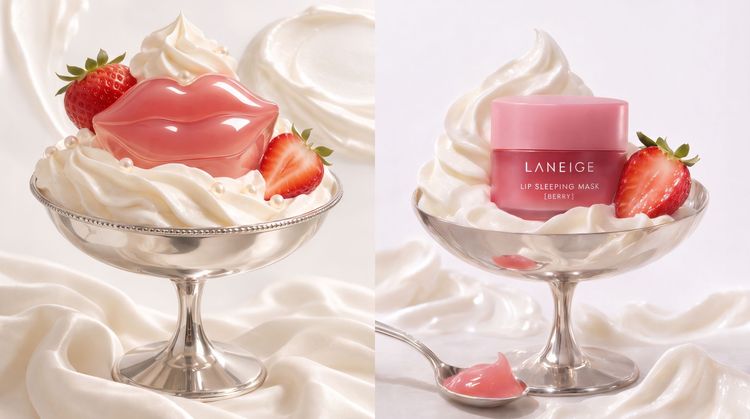
Left: GPT Image 2.6 Flare, Medium detalization. Right: GPT Image 2.6 Sunburst, Maximum detalization.
Test 2: Cartoon character
Create the main character for a children’s book: a girl around 10 years old with short dark curly hair, big brown eyes, and freckles. She’s wearing a yellow raincoat, green rain boots, and a small red backpack. Style: modern book illustration, soft watercolor, visible paper texture, a warm palette, and slightly uneven linework. Simple neutral background. No text or additional objects.
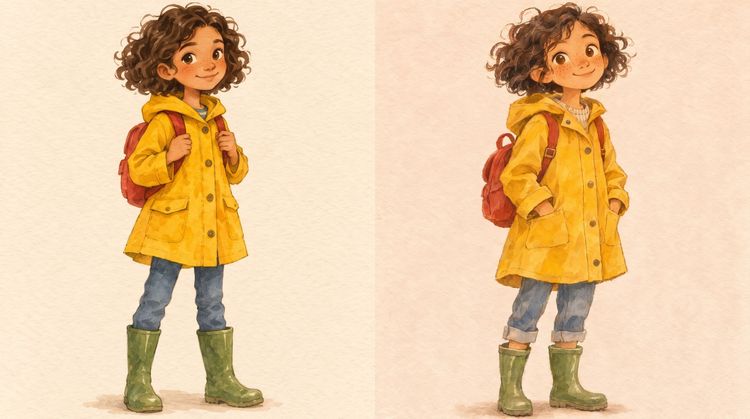
Left: GPT Image 2.6 Flare, Medium detalization. Right: GPT Image 2.6 Sunburst, Maximum detalization.
Test 3: Stylized poster with text
A concert poster, in the style of Alphonse Mucha. A young woman facing forward, crowned with apple blossoms, one hand raised and the other holding a branch of flowering almond. A tall arched halo behind her head in warm ivory, filled with a fine dotted pattern. Ornamental panels of pale rose and sage on both sides, almond blossom garlands sweeping along the top edge and down the right. At the top, "PRINTEMPS" in art nouveau display lettering with tall narrow capitals and curling terminals, in deep rose. Below it in smaller art nouveau type, "Concert du Soir". Off-white paper, lithograph texture, flat muted palette, no extra wording, no logos, no watermark.
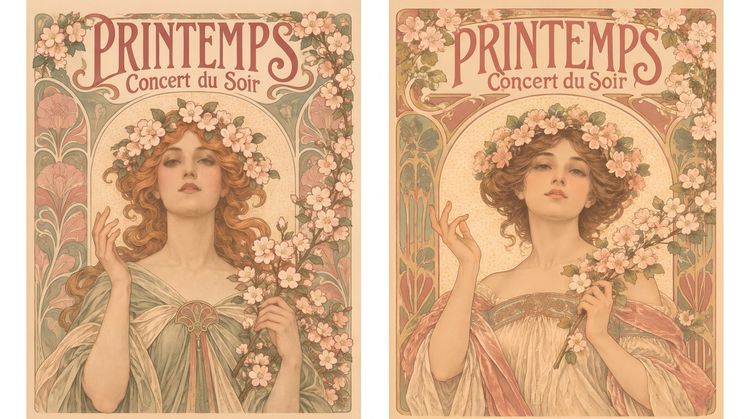
Left: GPT Image 2.6 Flare, Medium detalization. Right: GPT Image 2.6 Sunburst, Maximum detalization.
Test GPT Image 2.6 on SYNTX.AI
The new version is already live, so you can try it on your own workflow. Beyond GPT Image, SYNTX.AI offers 100+ other image, video, audio and text models in one interface, so you don’t have to pay for separate subscriptions.
FAQ
What is the difference between GPT Image 2.6 Flare and Sunburst?
Flare is optimized for speed. At low quality it can generate an image in as little as six seconds, and it brings improved layout quality for posters and product imagery. Sunburst is optimized for detail: higher quality generation and steadier consistency across edits at medium or high quality. Start with Flare, ship with Sunburst.
Can GPT Image 2.6 make a GIF from an image I already have?
Yes. Upload the image and ask for it to be animated, then adjust the animation speed and correct individual frames. It also works from text alone, or from a rough sketch.
How much faster is GPT Image 2.6 than 2.5?
OpenAI reports a 50% speed improvement over Images 2.5. The fastest documented case is Flare at low quality, around six seconds. Expect smaller gains at higher quality settings.
Is GPT Image 2.6 available outside ChatGPT?
Yes, you can use GPT Image 2.6 Flare and Sunburst on SYNTX.AI, under the same subscription as Ideogram, Seedream, Nano Banana and other leading image models. You don’t need an OpenAI subscription for this.
Does GPT Image 2.6 still get text wrong in images?
Yes, text may still contain errors, especially when the copy is dense or uses small or mixed fonts. That said, GPT Image 2.6 handles short headlines much better than earlier versions. We advise specifying the text in quotes in your prompt.