Can ChatGPT Generate Images? GPT Image Guide
In short, yes. ChatGPT generates and edits images on every plan, Free included, on web, iOS and Android. You can describe an image from scratch or upload a photo and describe the change.
The feature is called ChatGPT Images. The model behind it belongs to the GPT Image family, which OpenAI also offers to developers through its API. Essentially, ChatGPT is the app you type into, and GPT Image is the model that draws. The current version is GPT Image 2.5.
This guide covers how to generate images using ChatGPT, how to write better prompts, and how GPT Image model versions differ.
ChatGPT Images vs. GPT Image: what's the difference?
| ChatGPT Images | GPT Image | |
|---|---|---|
| What it is | The image feature inside ChatGPT | OpenAI's family of image generation models |
| Where you use it | chatgpt.com, iOS and Android apps | Third-party platforms |
| Who it's for | General users | Developers and platforms adding image generation to products |
| How you control it | Prompts, templates, aspect ratio picker, editor | API parameters such as model, quality and size |
ChatGPT's chat models, such as GPT-6, don't draw the image themselves. In the API, a chat model like GPT-6 Astra hands the request to a GPT Image model through an image generation tool. Platforms like SYNTX.AI connect to them too, which is why you can find GPT Image outside of ChatGPT.
In practice, the choice is simple. Use ChatGPT Images when you want to describe, edit and refine an image in conversation. Use a GPT Image model through the API, or through a platform that connects to it, when you need to control the model, the quality setting or the output size, or when you're generating images in bulk.
How ChatGPT image generation evolved
ChatGPT has swapped its image system several times since 2023. The names changed each time, which explains the widespread confusion.
| Date | Milestone |
|---|---|
| 2023 | DALL·E 3 becomes ChatGPT's image generator |
| March 25, 2025 | GPT-4o image generation replaces DALL·E 3 as the default |
| April 2025 | GPT Image 1 reaches developers through the API |
| Dec. 2025 | GPT Image 1.5 arrives |
| April 21, 2026 | ChatGPT Images 2.0 launches with a Thinking mode for images, and GPT Image 2 follows in the API |
| Aug. 30, 2026 | OpenAI retires the official DALL·E GPT in ChatGPT |
| Sept. 8, 2026 | ChatGPT Images 2.5 launches, and GPT Image 2.5 (Flare and Sunburst) reaches the API |
GPT-4o image generation was the turning point. Unlike DALL·E 3, it came from the same model that handles text, so it could use chat context and render readable text inside images.
GPT-5, which launched in August 2025, follows the same pattern. In the API, GPT-5 and its successors don't generate the image themselves but call a GPT Image model. So "GPT-5 image generation" and "GPT-4o image generation" describe one feature at different points in time.
ChatGPT Images 2.0 also added a Thinking mode in April 2026. When you select a Thinking or Pro model, ChatGPT reasons through the request and plans the image before it generates it.
GPT Image 2.5: Flare vs. Sunburst
OpenAI released GPT Image 2.5 on Sept. 8, 2026, in two versions: Flare and Sunburst. Both generate and edit images from text and image inputs and support transparent backgrounds. Quality settings run from low to max, plus auto.
| GPT Image 2.5 Flare | GPT Image 2.5 Sunburst | |
|---|---|---|
| Model size | Small | Base |
| Optimized for | Speed | Quality |
| Quality vs. GPT Image 2 | Comparable | Higher |
| Best for | Everyday image generation | Work where editing precision matters most |
According to OpenAI's prompting guide, Flare is the better starting point when speed matters, and Sunburst when quality requirements are demanding. Flare doesn't support streaming, so partial previews aren't available.
In ChatGPT, OpenAI describes ChatGPT Images 2.5 as sharper, more precise at editing and faster. It doesn't say which version runs behind the app, and the app gives you no option to choose. On SYNTX.AI, you pick the version that handles each request: Flare when you need speed, Sunburst when quality matters most.
Update: GPT Image 2.6 is out now. Try it for even faster generations and GIFs.
Flare vs. Sunburst: our impression
We compared the two versions on a set of prompts. You can see the full breakdown on our Medium, but here are a few examples of our generations.
A high-fashion beauty product shot: a lip mask styled as a dessert in an elegant silver coupe dish, surrounded by creamy white textures. Editorial food aesthetic, clean white background, soft studio light, glossy highlights, minimalist composition. No added text, only the original packaging.
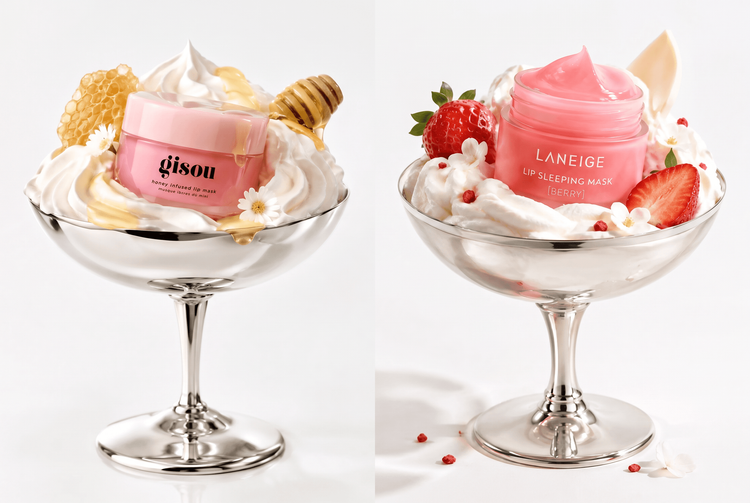
Left: Sunburst. Right: Flare.
We also experimented with different generation parameters, like level of detail.
An ultra close-up beauty portrait on a clean white background, shot from just below the chin. Lips slightly parted with a natural gloss, cheeks and chin flushed with bright pink blush. Radiant skin with visible pores and texture, thick brushed-up brows, sleek dark hair with one glossy strand across the forehead. Bright, soft, almost shadowless studio light. 50mm macro lens.
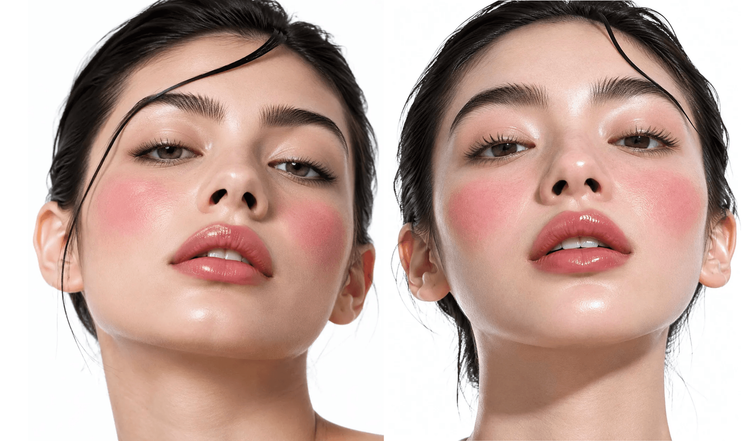
Left: max detail. Right: medium.
We found that GPT Image 2.5 handles artwork styles like watercolor well, too.
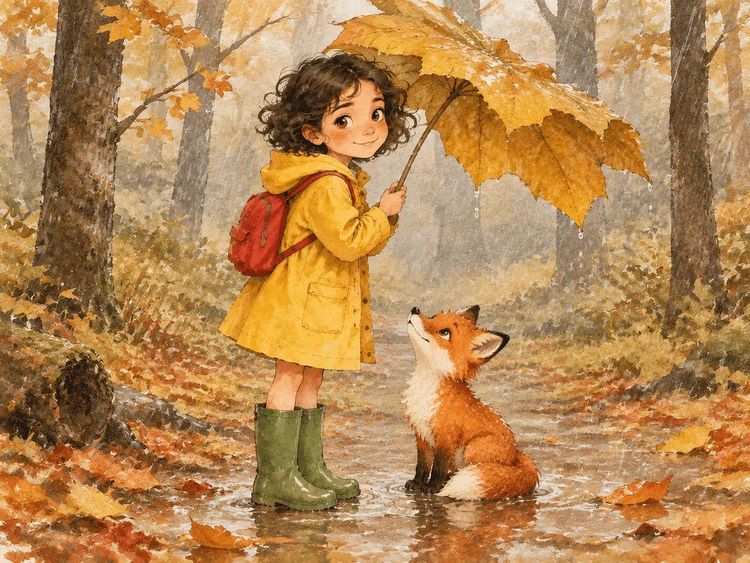
How to create images with ChatGPT
ChatGPT image creation takes one prompt and a few clicks. These steps work for anyone learning how to generate images with ChatGPT on web or mobile.
- Open ChatGPT. Type your request directly in the chat, or open the sidebar and select Images. On mobile, select More, then Images.
- Write a specific prompt. Name the subject, setting, style and any text that should appear in quotes. For example: "a watercolor poster of a lighthouse at dusk, portrait 4:5, headline "Open Late" in white serif."
- Optional: Start from a template or a sketch. Under Images, select Templates and pick a category such as a poster or logo. ChatGPT may ask follow-up questions about style. On mobile, type @ in the message box, select Sketch, draw your idea and add instructions.
- Set the aspect ratio. Use the aspect ratio picker, or include the ratio in your prompt, for example 16:9 for a banner. You can also ask for a transparent background.
- Edit the result. Select the image to open the editor, use the selection tool to highlight an area and describe the change. You can also skip the selection and describe the edit in chat. On mobile, you can add comments, resize or remove parts.
- Access the image. Every image is saved automatically under Images. Select Save to download it.
Treat the first result as a draft. ChatGPT keeps the conversation context, so you can ask for one change at a time, such as a warmer color palette, a closer crop, a different font style or "replace the background with a rainy street". Specific edits usually land better than a full rewrite of the prompt.
How to generate images with GPT Image on SYNTX.AI
You can also use GPT Image outside ChatGPT. On SYNTX.AI, GPT Image is available alongside Ideogram, Seedream, Nano Banana and other leading image generators.
- Register on SYNTX.AI. Create an account with your email.
- Get your welcome tokens. New accounts receive them at registration, so you can test the model at no cost.
- Go to the Image tab. It's in the main navigation of the website.
- Select the model. Open the drop-down menu on the right and choose GPT Image. Then, select the model version.
- Set generation parameters. Select the aspect ratio and resolution.
- Write your prompt and generate. The same prompting tips apply: name the subject, style, layout and any text you want in the image.
How to write better prompts for GPT Image
GPT Image understands professional terminology, so you don't need to simplify your prompt. The following details control how an image looks. If you cover each one, the model has fewer gaps to fill with its own guesses.
- Camera and lens. Describe how the shot is captured, including focal length, aperture, depth of field, framing and angle. A wide lens like 24mm shows more of the scene and suits interiors, while 85mm is the classic portrait choice. A wide aperture like f/1.8 blurs the background, and f/8 keeps everything sharp.
- Lighting. For example, a softbox gives even, soft light, rim light adds a thin bright outline around the subject, golden hour gives warm low-angle sun, and hard flash creates harsh highlights with deep shadows.
- Materials and color. Specify textures and finishes, the palette and the color grading. For example, “matte black ceramic, brushed steel details, muted earth palette, teal-and-orange grade.”
- Medium and style. Say what kind of image you want, such as a photograph, film still, vector illustration, watercolor or 3D render. If you skip it, the model picks a look itself.
- Characters. Describe the body framing (close-up, waist-up or full-length), where they’re looking and what their hands are doing. Unspecified poses get filled in by the model, and hands are where mistakes show first. For example, “waist-up, looking at the camera, one hand resting on the back of a chair.”
- Text. Put the exact wording in quotes and say where it goes. Add that it should appear once, and that nothing else should be written. For example, ‘A poster with the title “Vice City” in large letters at the top, and no other text.’
Is the ChatGPT image generator free?
Yes. Free accounts can create and edit images with the ChatGPT image generator. Image generation has its own usage limit, separate from text chat, which stays unlimited apart from abuse safeguards.
OpenAI doesn't publish how many free images you get. ChatGPT notifies you when you reach the limit, and OpenAI says available limits can change over time. Numbers you see on other sites come from individual accounts on individual days, so treat them as snapshots.
If you hit the limit mid-project, you can wait for it to reset. You can also test GPT Image on SYNTX.AI for free: when you register, we give you welcome tokens to start generating right away.
On SYNTX.AI, every generation consumes tokens. The amount depends on your request: the model and version you choose, the quality and resolution, the number of images you generate at once and how complex the request is.
Here's a rough breakdown of how much it costs to create an image using the model on SYNTX.AI.
| Model | Aspect ratio | Resolution | Cost |
|---|---|---|---|
| GPT Image 2.5 Flare | 3:2 | 1K | 2 tokens |
| GPT Image 2.5 Sunburst | 3:2 | 1K | 2 tokens |
| GPT Image 2.5 Flare | 3:2 | 4K | 4 tokens |
| GPT Image 2.5 Flare | 9:16 | 2K | 3 tokens |
What improved with GPT Image 2.5 and what still falls short
Earlier ChatGPT image guides list the same weak spots: warped details, garbled text and little design sense. GPT Image 2.5 fixes some of them, and a few remain.
Fine details and consistency
OpenAI says ChatGPT Images 2.5 renders sharper details and edits more precisely. In the API, both models also improve subject preservation, which helps keep faces and product shapes stable across edits.
Repeated edits can still change details you meant to keep. Restate what must stay the same and inspect each result. If a region must stay pixel-identical, paste the approved edit back into the original in an editor. Selections in the ChatGPT editor aren't always exact, either, and edits may extend beyond the highlighted area.
Text in images
ChatGPT Images follows instructions to add text, and OpenAI's own prompting guide includes exact-wording examples such as ad taglines. Put the wording in quotes, say where it goes and ask for it to appear once.
Small text, dense information and several fonts in one image are the likeliest to contain errors. Check the spelling before you publish.
Understanding what you mean
On paid plans, selecting a Thinking or Pro model lets ChatGPT reason through your request first, which helps with multi-part prompts.
Vague feedback such as "make it happier" still leaves the model guessing. Name the change instead: warmer light, brighter colors, a smile.
Design sense and brand fit
ChatGPT doesn't know your brand guidelines, and a good-looking image isn't the same as a balanced layout. For on-brand work, give exact colors, fonts and spacing, or take the image into a design tool such as Canva.
Artistic style and ownership
Describe a look through medium, era and technique, such as risograph print or 1980s synthwave, rather than naming an artist.
Under OpenAI's terms, you own the output you create to the extent the law allows, and you can't present it as human-made. Another user may receive similar output, and copyright protection for AI images varies by country. Treat logos and brand marks with extra care, and check OpenAI's current terms before commercial use. ChatGPT images also carry C2PA provenance metadata.
Test GPT Image on SYNTX.AI
We built SYNTX.AI so you don't need a separate subscription for every AI model. Image, video, text and music tools like GPT Image, Seedream, Nano Banana, Higgsfield Soul and Ideogram are all available in one interface. Your tokens don't expire, so whatever you don't use this month carries over to the next.
Want to try GPT Image before you commit? Register on SYNTX.AI and use your welcome tokens to generate your first images for free.
FAQ
Can you use ChatGPT to generate images?
Yes. Describe the image in chat or open the Images tab. Image generation is available on all plans across web, iOS and Android. On SYNTX.AI, you can access GPT Image from the Image tab, alongside Ideogram, Seedream, Nano Banana and other image models.
Is ChatGPT AI image generation free?
Yes, with a limit. Free accounts can create images until ChatGPT shows a limit notice. OpenAI doesn't publish an exact number. You can also test GPT Image for free on SYNTX.AI with the welcome tokens you get at registration.
How many images can I generate with ChatGPT Plus?
OpenAI doesn't publish a fixed number for Plus either. Plus has a higher allowance than Free, and OpenAI says limits may vary with system conditions. Plus also lets you generate images with a Thinking model. If you'd rather not plan around limits, SYNTX.AI runs on tokens that don't expire, so unused ones carry over to the next month.
Does ChatGPT 3.5 create images?
No. GPT-3.5 is a text-only model. ChatGPT creates images through the GPT Image models, which are separate from its chat models. You can use GPT Image on SYNTX.AI alongside video, music and text tools in one subscription.