

Kling AI Video Generator Review: What's New in Kling 4.0?
Kling 4.0 is out, but a new version doesn't always mean better videos. We decided to check whether the improvement is noticeable first-hand. This Kling AI review covers what the model can do, how it compares to older versions and how to prompt it. You'll also find a step-by-step guide to getting started and answers to common questions.
What is Kling 4.0? The short answer
Kling 4.0 is the newest video generation model from Kuaishou. It launched on Oct. 15, 2026 and comes in two versions: Kling 4.0 for full quality and Kling 4.0 Flash for faster, cheaper drafts. The main change from Kling 3.0 is control. You can feed the model reference images, videos and voices and set keyframes, instead of relying on the prompt alone.
Kling 4.0 features and specs
| Spec | Kling 4.0 |
|---|---|
| Modes | Text-to-video, image-to-video, first and last frames, multiple keyframes, Omni Reference, video editing |
| Duration | 3 to 30 seconds, adjustable in 1-second steps (default 10 seconds) |
| Resolution | 720p, 1080p and 4K |
| Dynamic range | 10-bit HDR at 1080p and 4K (coming soon) |
| Aspect ratios | 21:9, 16:9, 1:1, 9:16 and Auto |
| Audio | Two-channel stereo with lip sync |
| Speech languages | Chinese, English, Japanese, Korean, Spanish, Portuguese, German, French and Hindi |
| Prompt length | Up to 8,000 tokens |
| References | Up to 15 per task: 10 images, 5 videos (30 seconds combined), 7 elements and voice profiles |
| Keyframes | Up to 10 |
| Video editing input | Up to 5 clips, one of them the main clip, 30 seconds combined |
Long takes and multi-shot
Kling 4.0 generates up to 30 seconds in one pass. That's enough for a single uninterrupted shot, known as a long take, or for a short scene with several cuts, so you don't have to stitch separate clips together.
Multi-shot mode is on by default. The model splits your prompt into shots, cuts between them and sets the pacing, much like an editor would. To control the cuts yourself, describe each shot by time range in the prompt.
Omni Reference
Omni Reference lets you steer a generation with supporting files instead of text alone. You can combine images, videos, elements and voice profiles in one task.
An element is a reusable subject, such as a character, a product or a prop, that you save once from images or a short clip and call up in later generations. A voice profile is a saved voice, created from 5 to 30 seconds of audio, that the character then speaks with.
Image references tell the model what things look like, for example:
- Subject photos: A person, product or object to keep consistent.
- Three-view character sheets: Front, side and back views of one character, so the model knows the full design.
- Grids: One image split into panels, for example the same subject from several angles.
- Storyboards: Panels that plan the shots, framing and camera paths.
- Wireframes: Simple line drawings that mark where things sit in the frame.
Video references tell the model how things move. You can borrow an actor's performance, an action such as a fight, a camera movement or the pacing of a scene.
Kling 4.0 also accepts reference videos from 3D workflows. A white-model video is a plain, untextured 3D blockout that shows motion and camera paths, and the model adds the real look on top. A depth-map video is a grayscale clip that encodes how far each object is from the camera, which locks the spatial layout. Both suit 3D artists and VFX teams who already have a rough animation and want the model to turn it into a finished shot.
Keyframes
Keyframes are images that set exactly how the video looks at chosen moments, such as the opening shot, a midpoint and the final frame. The prompt then describes the action and transitions between them. Use them when specific frames must appear exactly as designed. The feature accepts images only, and a single task uses either Keyframes or Omni Reference, not both.
Video editing
Kling 4.0 lets you change part of an existing clip and leave the rest as it was. You can modify facial expressions, body movement, camera position, style or background, add or remove elements and replace characters. For example, you can swap the person in the foreground for a new character while the street, lighting and camera move stay untouched.
Creative Recreation
Creative Recreation reuses the structure of a video that already works: its pacing, shot composition and visual style. You then replace the products, characters or assets with your own. For example, you can take a proven product ad and swap in your product while the timing and camera moves stay the same.
Sound, languages and on-screen text
Kling 4.0 generates audio in two-channel stereo, with separate left and right channels, so sound can move across the scene. Lip sync has also improved, so mouth movements follow the speech more closely.
Speech covers nine languages, and German, French and Hindi are new in this version. The model handles regional accents too, such as American, British and Indian English or Sichuanese and Cantonese Chinese. To get speech in a specific language, write the line in that language inside quotation marks in your prompt.
Our tests have shown that text that appears in the frame, such as signs, captions, emojis and logos, stays readable and stable through camera moves and scene changes.
What is Kling 4.0 Flash?
Kling 4.0 Flash is a lighter version of the model. It generates videos faster and consumes fewer tokens, which is ideal for short social media clips or testing ideas. The max length is 20 seconds, at 720p resolution.
Flash supports text-to-video and Omni Reference. For image-to-video, it takes a first frame only. You can start from one image, but you can't set an end frame or multiple keyframes.
Kling 4.0 vs. other versions: which should you use?
While Kling 4.0 is the most capable so far, SYNTX.AI also carries earlier model versions that might be better suited for certain tasks.
| Version | Max length / resolution | Audio | Best for |
|---|---|---|---|
| Kling 2.0 Master | Short clips (5-second baseline) / 720p | None | Quick visual tests and short clips where you don't need sound |
| Kling 3.0 | 15 seconds / 1080p, plus a separate 4K mode | Native audio | Short multi-shot scenes with sound |
| Kling 4.0 | 30 seconds / 4K (10-bit HDR coming soon) | Stereo with lip sync | Long takes, ads and dialogue scenes that need consistent characters or exact frames |
| Kling 4.0 Flash | 20 seconds / 720p | Not specified | Fast, cheap drafts of prompts and references before a full-quality run |
How to use Kling AI
How to use Kling on kling.ai
Kling 4.0 has two starting points. Use Omni Reference (the default) when you have a general idea or references the model should follow. Use Keyframes when certain frames must look exactly as you designed them, and the model fills in the motion between them. You can't combine the two in one task.
- Go to kling.ai and sign in.
- Select Kling 4.0, then pick Omni Reference or Keyframes.
- Upload image, video or audio references. In Keyframes, upload images only.
- Write the prompt. State what each asset does, then describe the action, camera movement and audio.
- Set duration, resolution and aspect ratio.
- Generate and refine. Change one element at a time, such as the prompt, a reference or the duration, so you can see what helped.
How to use Kling with AI agents
Kling 4.0 also connects to AI agents. Through Kling's MCP (Model Context Protocol) server, an AI assistant can use Kling as a tool, and through the CLI (command-line interface) you can run it from a terminal. Either way, an agent can generate videos with Omni Reference and keyframes for you autonomously, for example, a batch of clips from a script.
How to use Kling on SYNTX.AI
If you'd rather skip a separate Kling subscription, you can generate with Kling on SYNTX.AI, where it’s available alongside 100+ other tools for image, video and audio generation.
- Register on SYNTX.AI.
- Get your welcome tokens. New accounts receive them at registration, so you can test AI models at no cost. Alternatively, get your subscription right away for higher limits.
- Go to the Video tab. It's in the main navigation of the website.
- Select the model. Open the dropdown menu on the right and choose Kling.
- Select the model version. SYNTX.AI currently offers Kling versions from 1.5 through 4.0.
- Select the mode: Omni Reference, text-to-video, image-to-video, video-to-video, Keyframes, or Elements.
- Set duration, resolution and aspect ratio.
- Add your assets and write your prompt.
- Generate and iterate.
How to write prompts for Kling 4.0
Kling's own guide recommends descriptive language over abstract terms. Write "side backlighting outlines the object's edges, the background is blurred" instead of "premium look."
It helps to know professional shot types, lighting, composition and technical terms because they work as shorthand for decisions a photographer would make on set. The model learned which visual traits go with each term from the images it was trained on, so one word can set several parameters at once.
A few more tips:
- Assign roles to assets. Without a stated role, the model infers how to use each reference.
- Structure long prompts by time. Break a 30-second clip into time ranges with the action, camera and audio for each.
- Put dialogue in quotation marks. Write the line in the language you want spoken, and describe the speaker's age, tone and pace.
- Use "Edit @Video1" for edits. Add "Keep everything else unchanged" so the rest of the scene stays stable.
- Match pacing for recreation. The closer the reference clip is to your target in pacing and shot structure, the easier the result.
Kling AI prompt ideas
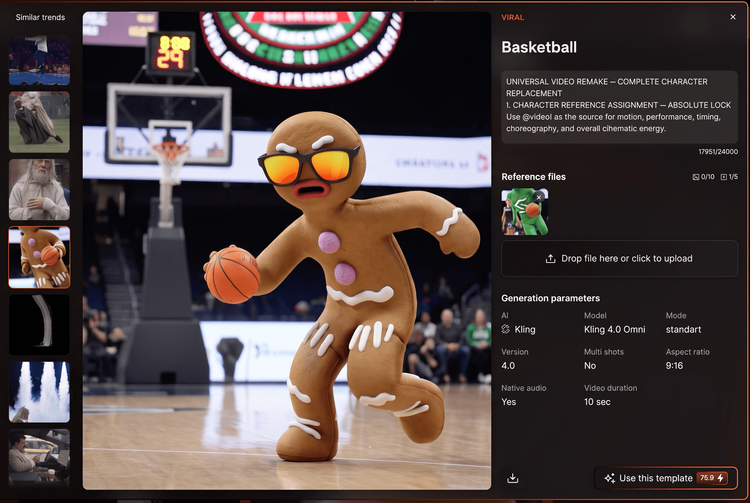
Want to test Kling but aren't sure where to start? SYNTX.AI Trends is a collection of 300+ templates for viral content, available for Kling and other video models. Pick a trend, check that the description lists Kling as the model and click "Use this template". We've already set the generation parameters and written the prompt for you.
Alternatively, check out AI Discord servers for prompt engineering tips. SYNTX.AI has one too!
Kling AI pricing on SYNTX.AI
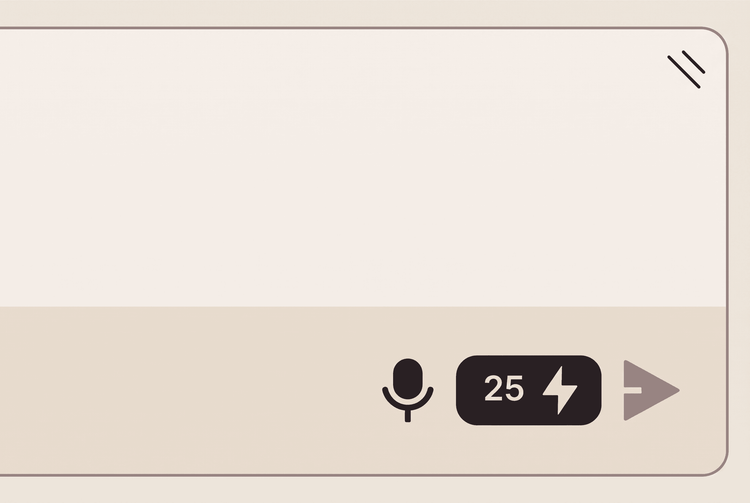
On SYNTX.AI, every Kling generation costs tokens. The number depends on your request: the Kling version you choose, clip length, resolution and mode.
Here’s an example of how generation parameters affect the cost of video generation in Kling 3.0 Turbo.
| Video duration | Resolution | Mode | Minimum cost |
|---|---|---|---|
| 5 seconds | 720p | Text-to-video | 25 tokens |
| 5 seconds | 720p | Omni Reference | 32 tokens |
| 5 seconds | 1080p | Omni Reference | 48 tokens |
| 10 seconds | 720p | Text-to-video | 50 tokens |
The actual cost depends on many factors. You’ll always see it at the bottom of the prompt window before you start the generation.
Note: Your SYNTX.AI tokens don't expire, so unused ones carry over to the next month.
100+ AI tools in one
If you’re tired of juggling multiple subscriptions and paying for tokens you don’t use, register on SYNTX.AI and access Kling alongside 100+ other video, image, text and audio models. Generate dialogue scripts in Claude or ChatGPT, clips in Kling or Seedance, and video covers in Ideogram or Seedream, all under one plan, without even switching browser tabs.
FAQ
How long can Kling 4.0 videos be?
Kling 4.0 generates clips of 3 to 30 seconds in one pass. Kling 4.0 Flash, the faster version, generates videos up to 20 seconds. Longer clips use more tokens, so test a prompt on a short clip before you run the full length.
What's the difference between Kling 4.0 and Kling 3.0?
Kling 4.0 doubles the maximum clip length from 15 to 30 seconds and gives you more control over the result. It accepts up to 10 keyframes instead of just a first and last frame. It also accepts up to 15 reference assets, including images, videos, elements and voices.
How much does Kling cost on SYNTX.AI?
On SYNTX.AI, Kling generations cost tokens instead of a separate Kling subscription. The cost of a generation depends on the Kling version you choose, clip length, resolution and other settings you pick. Tokens don't expire, so unused ones carry over to the next month.
Can I use Kling videos commercially?
Yes, with a paid SYNTX.AI plan. You can use Kling videos in ads, social content and client projects. That said, you're responsible for having the rights to any images, footage or voices you upload as references.
Is Kling AI legit?
Yes. Kling AI is built by Kuaishou, a publicly listed Chinese technology company, and its official site is kling.ai. You can also use the official Kling model on SYNTX.AI.